Menu Tools
Each of your KioskBuddy menus has a Menu Tools section which allows you to Change Location, Sort Menu, manage Automatic Reimporting, Upload Photo, and Delete Menu. You can find the Menu Tools section by:
1. Logging into your KioskBuddy Dashboard
2. Clicking on Catalog
3. Selecting a desired menu
4. Pressing More... at the top of the menu
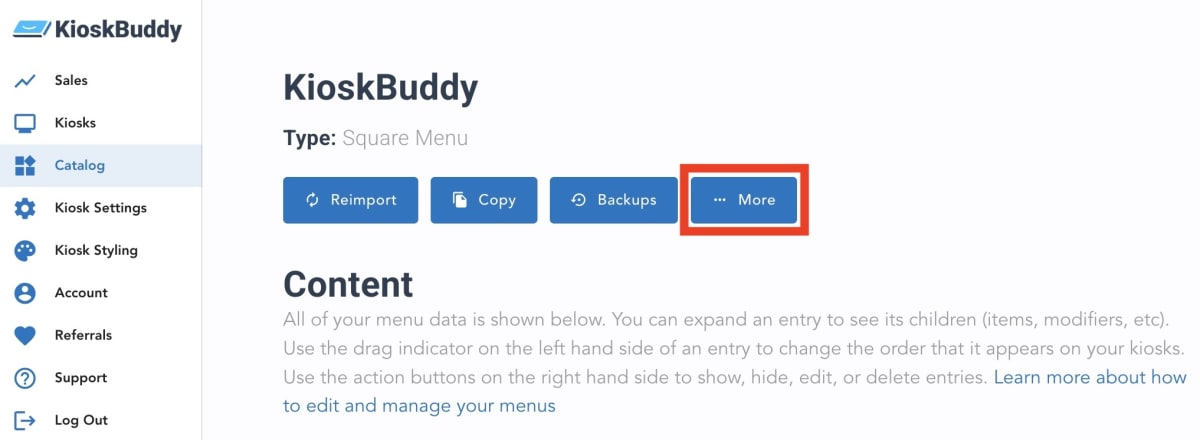
Inside the Menu Tools section, here's what you'll see:

Change Location link
If you have multiple locations set up through Square, you may need to change which Square location menu sales are reported to or which KDS they are reported to. You can select a new Square location using the Change Location dropdown menu.
Sort Menu link
You may want to sort your menu alphabetically or according to a pre-determined order set in Square. Find out more about sorting your menu, here.
Automatic Reimporting link
You can toggle on or off Automatic Reimporting, depending on how you make edits to your KioskBuddy menu. You can choose to brings changes over into KioskBuddy the moment you make those edits in Square or you can opt to manually reimport your menu, either as a bulk option or one item or category at a time. Read more about how automatic reimporting works, here.
Menu Photo link
If you're a food hall and you'd like to display multiple menus on your KioskBuddy kiosk, you may want to have a photo associated with each menu. To upload a photo for the selected menu, press Upload Photo.